There are many use cases for needing to upsert rows of data into a data extension via API. Writing to a data extension directly gives you access without having to go through any front end.
First you’ll need to create the API endpoint by creating an Installed Package in SFMC setup. You’ll need read/write privileges to data extensions specifically for this API call. Once created, use the authorization end point to retrieve the Bearer token (How To Get Bearer Auth V2 Token for API) which will be needed to upsert to the DE.
The endpoint for the async upsert is:
/data/v1/async/dataextensions/key:[data_extension_key/rows
For example, the full URL would be similar to this where “uniqueprefixhere” is the auto-generated prefix created when an Installed Package is created. And where [data_extension_key] is the customer key or unique key for the DE.
https://uniqueprefixhere.auth.marketingcloudapis.com/data/v1/async/dataextensions/key:[data_extension_key/rows
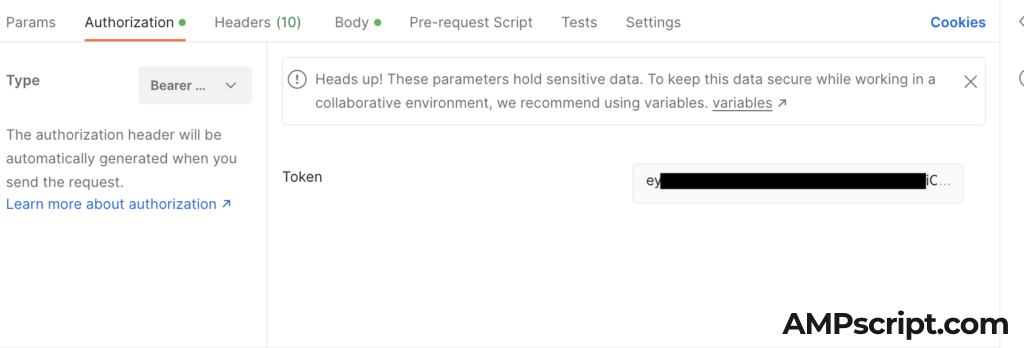
Below are examples using Postman to test the API endpoint. First set the Authorization type to Bearer Token and using the example from this previous post (How To Get Bearer Auth V2 Token for API), that value is inputted here.
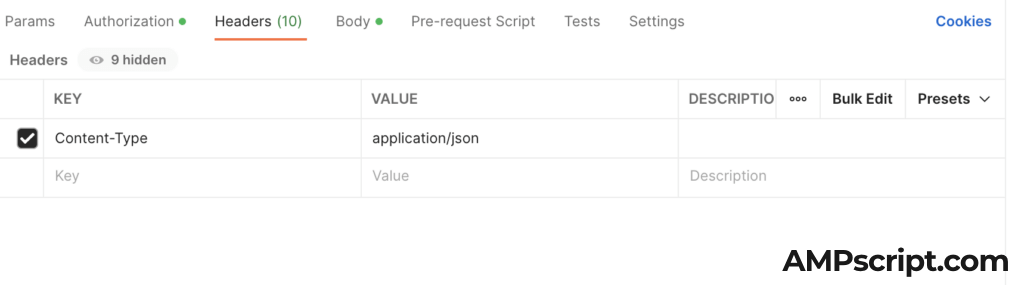
Next, in the Headers, set the Content-Type to application/json as the value. We will be using raw json in the next screenshot example.
Depending on the what data you need upsert into the data extension, this raw JSON example below is shown for the structure of the data. Note that you’ll of course need to include primary keys or non-nullable fields or the result will error.

The response should be a 202 Accepted response with the details on the result Id and message. Check that the row was upsert into the data extension in the SFMC user interface.
